Get started - How to assign Employees Duty Roster 4 0
📝 Note: This is also a fundamental part of your setup, make sure you assign your employees/staff here first, otherwise you won't be able to use the other features like the 🍔 restaurant, 🧹housekeeping, 🏊 pool booking and 🚗transport facility.
If you need more information, there are individual knowledge posts for each module/page that you may search for. 🔎📙
To assign Employees > Go to Duty Roster
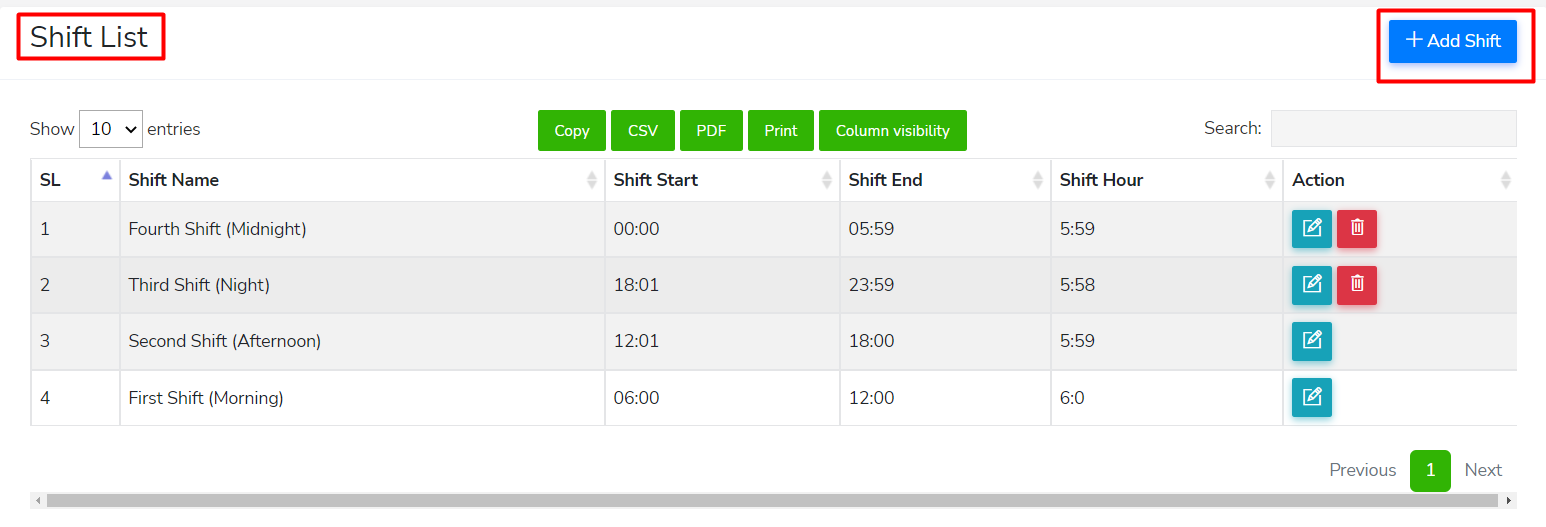
Step 1: User must set first the "roster" of the employees to avoid conflicts of schedules/tasks/shifts. To set the roster, proceed to "Shift List" > Add first a "+Shift" name, shift start, shift end, and shift hour.
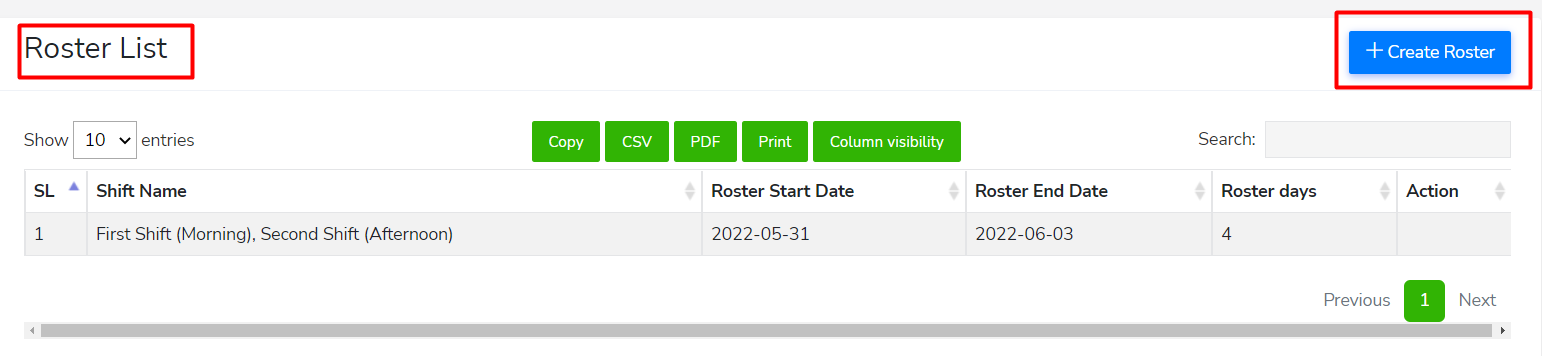
Step 2: Proceed to "Roster List" to create a "Roster" and tag the created "Shift".
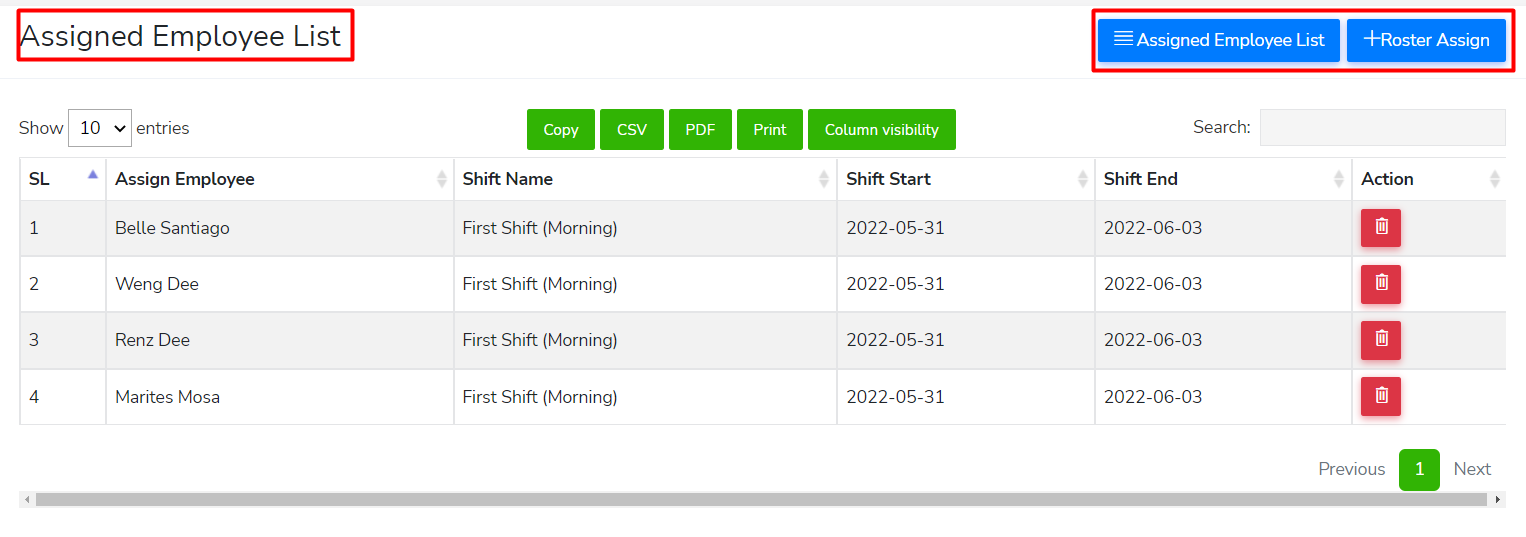
Step 3: Next, proceed to "Assigned Employee List" then click "+Roster Assign" to assign a Roster to an "Employee"
Note: The time of "shift" and the dates provided in "rosters" must match to the current date and time (today) to be able to display the list of available employees.
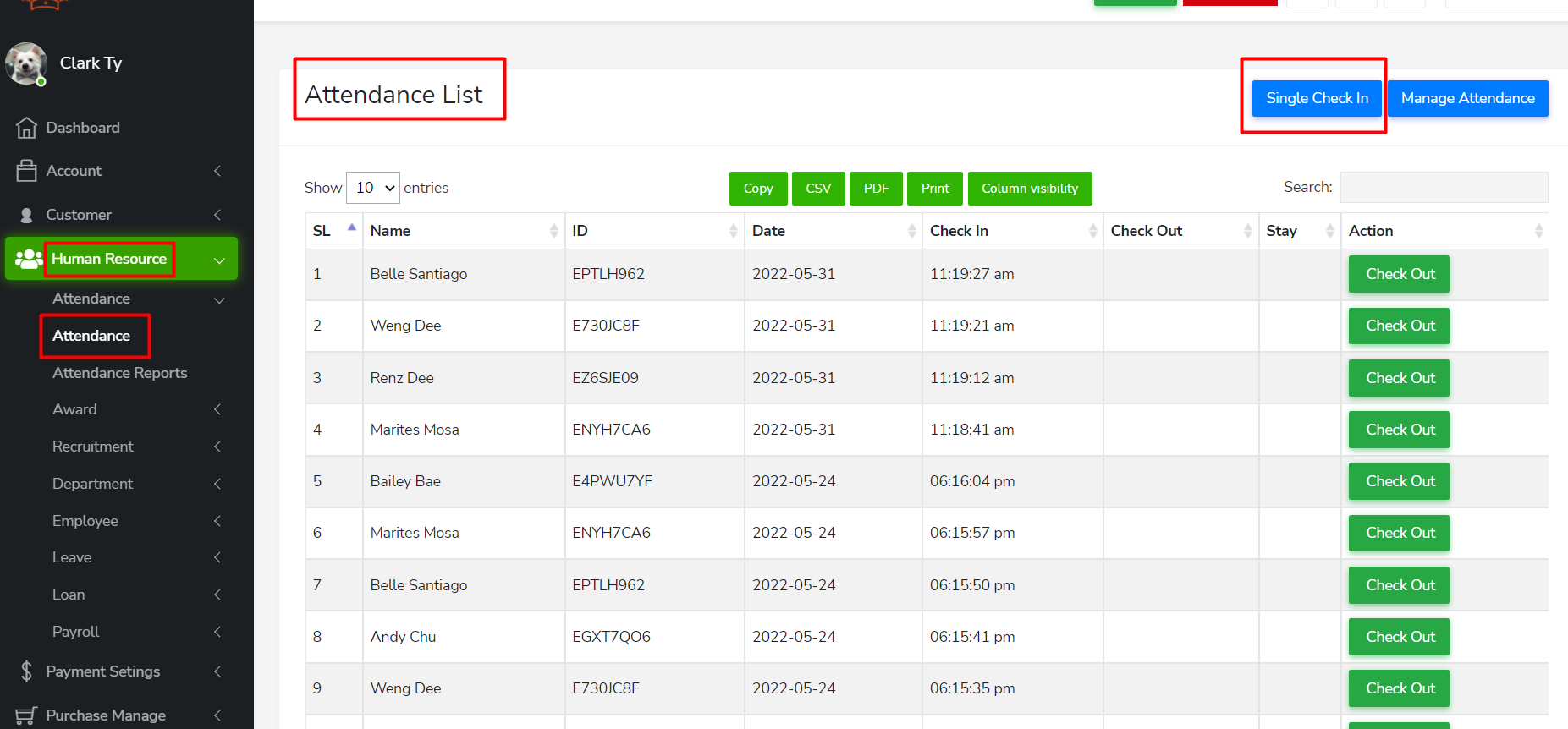
Step 4: Go to "Human Resource" > "Attendance" then click the "Single Check In" button for you to manually select employees ready for check-in.
Here you will also be able to manage attendance (check-in/check-out) of the employees.
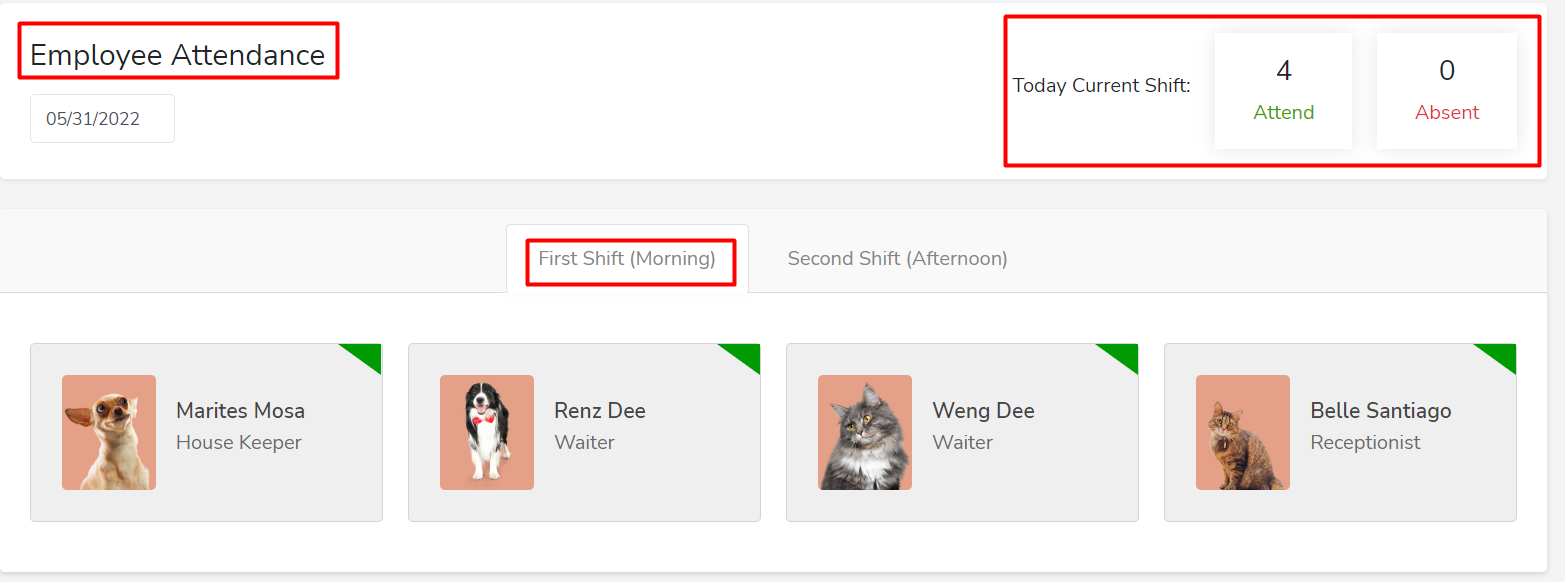
Step 5: Back to duty roster > after following the steps above, you will now see in the Employee Attendance Dashboard the number of "today's current shift" and the list of employees attending.
And that's it, let us know if you need extra support! 🐾