Get started - How to create Room (Quick Guide) 5 0
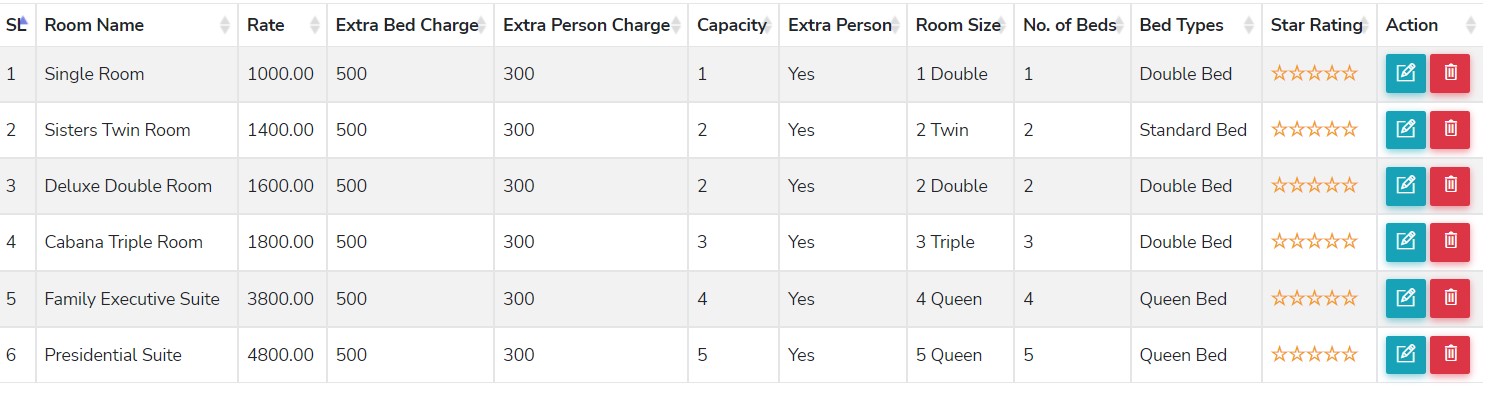
📝 Note: This is the first part of your setup, make sure you complete it all before moving on to creating/setting up your hotel's website. If you require additional information, you may search for separate knowledge posts for each module/page. 🔎📙
To create a Room > (1) Go to Room Facilities > (2) Room Management
Step 1: Make sure you've finished creating facilities before going on to the room management step.
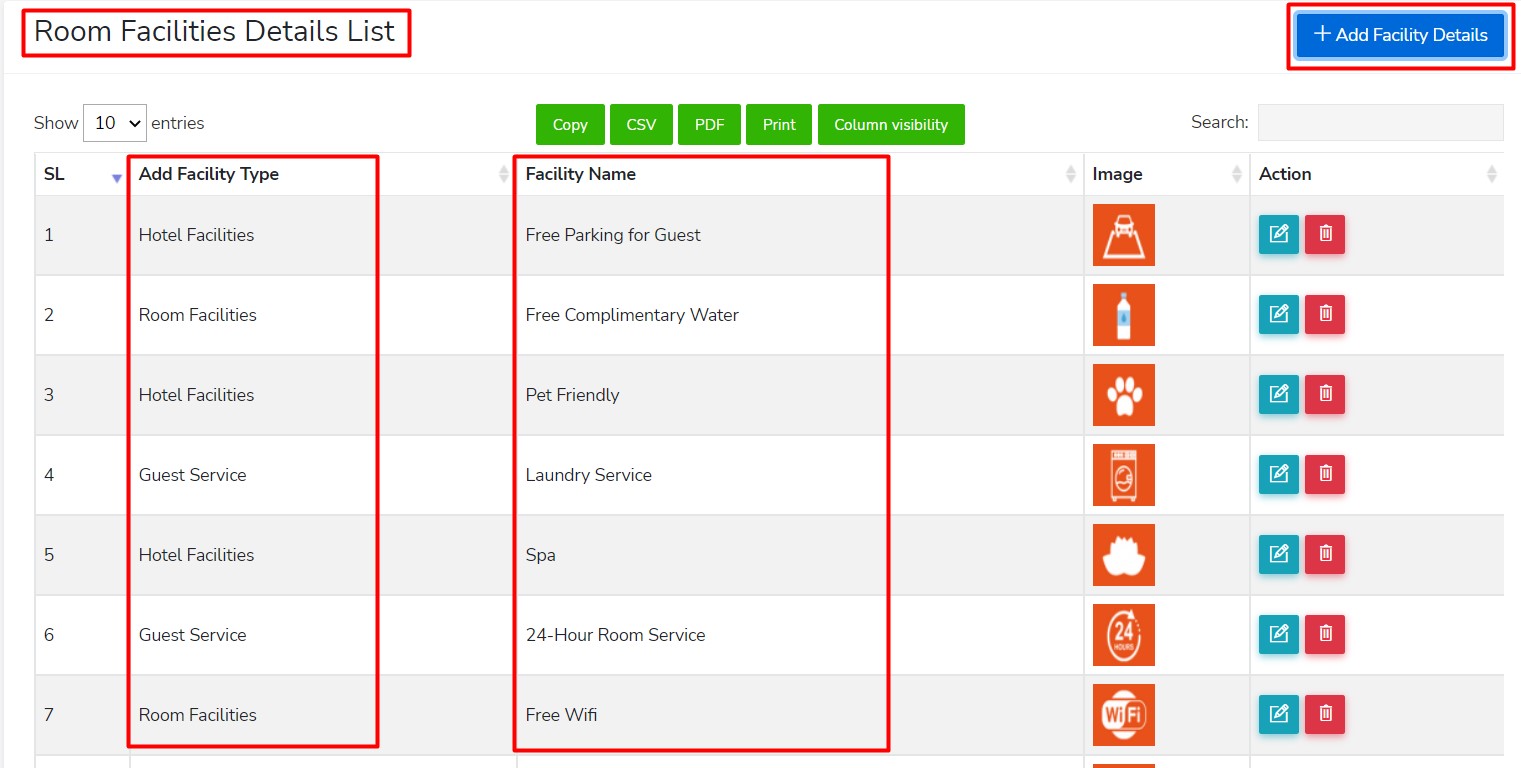
Go to Facility List > click "+Add Facility Type" and type the name of the facility you want to add (the parent category).
Then, under the Facility Details List, click "+Add Facility Details" and type the facility name (child category) for that particular facility type.
📝 Note: (Facility Type as the parent category and Facility Details as the child category)
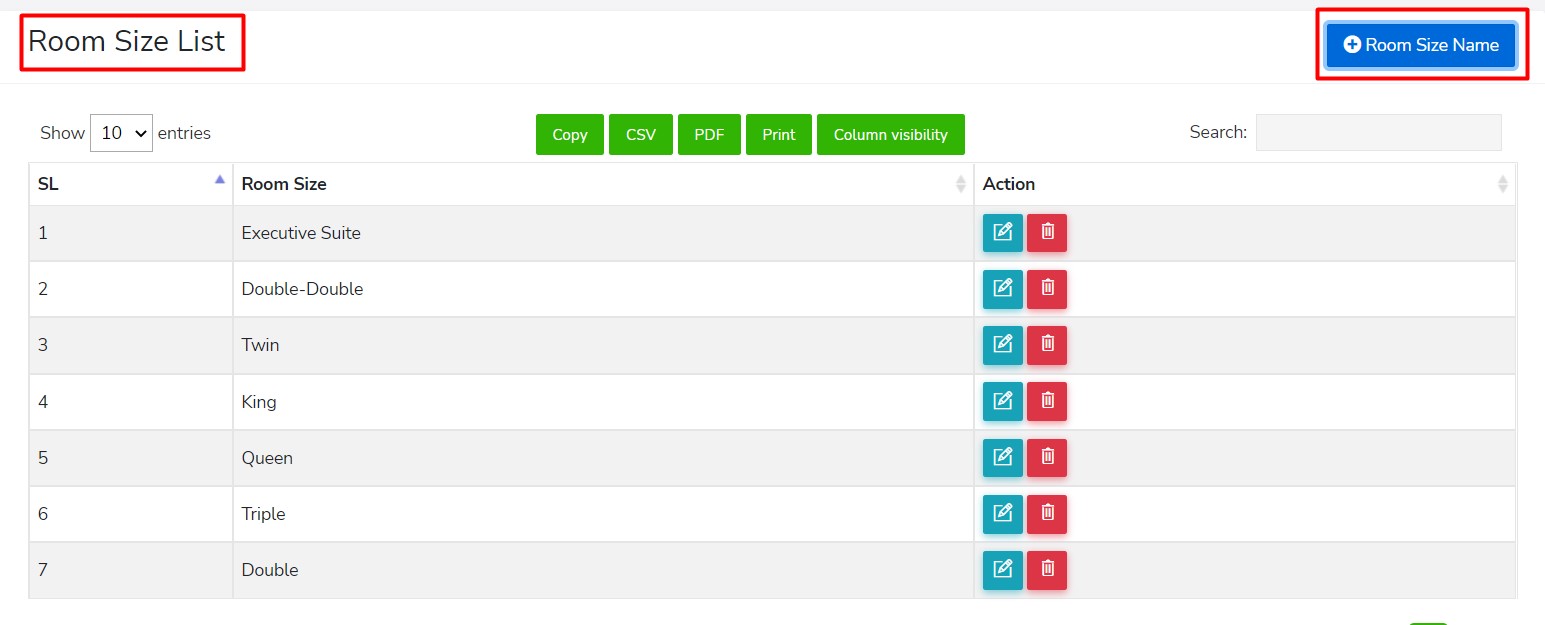
Before proceeding to room management, go to Room Facilities > Room Size List this is where you can add the room size, simply click the "+Room Size Name" button
Step 2: Room Management > Room Type
To proceed, simply follow the steps below in order when setting up:
bed types > booking types > booking source > complimentary > floors & room mapping then proceed to room type and start adding rooms.
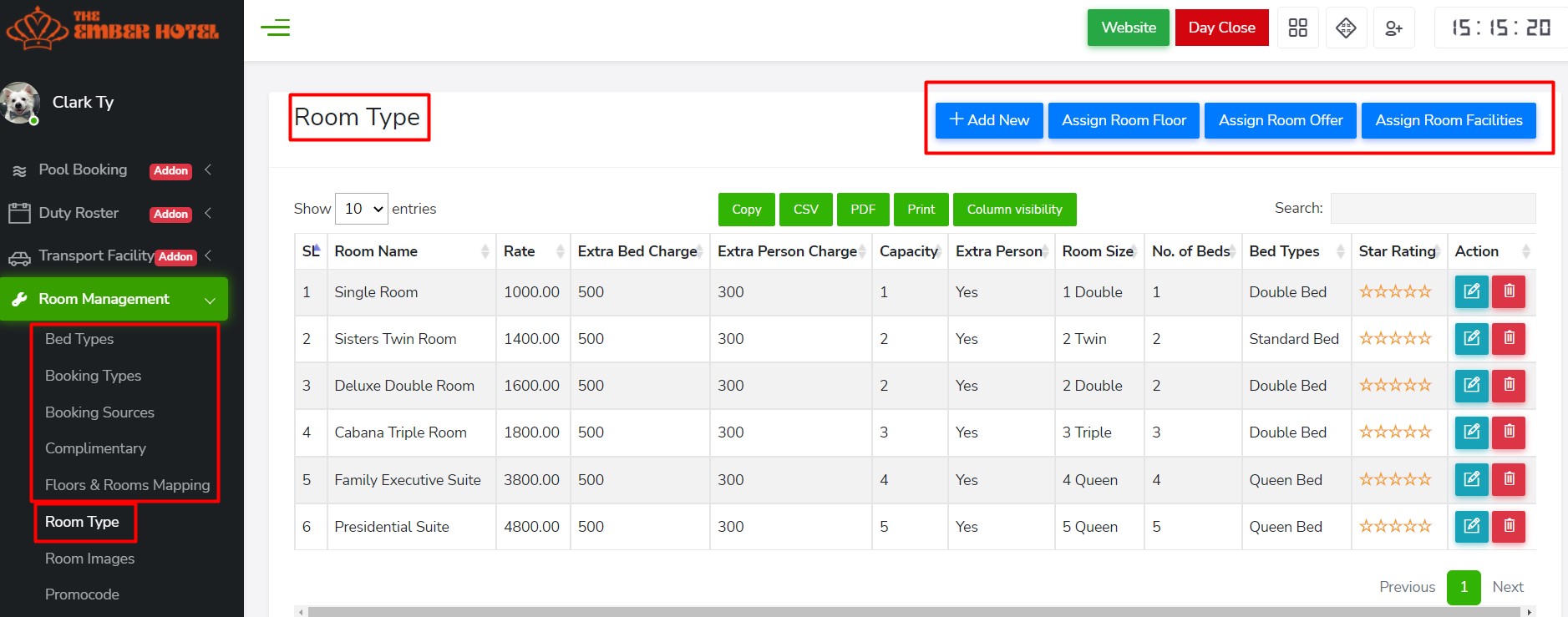
When adding a room, follow +add new, assign room floor, assign room offer, assign room facilities buttons

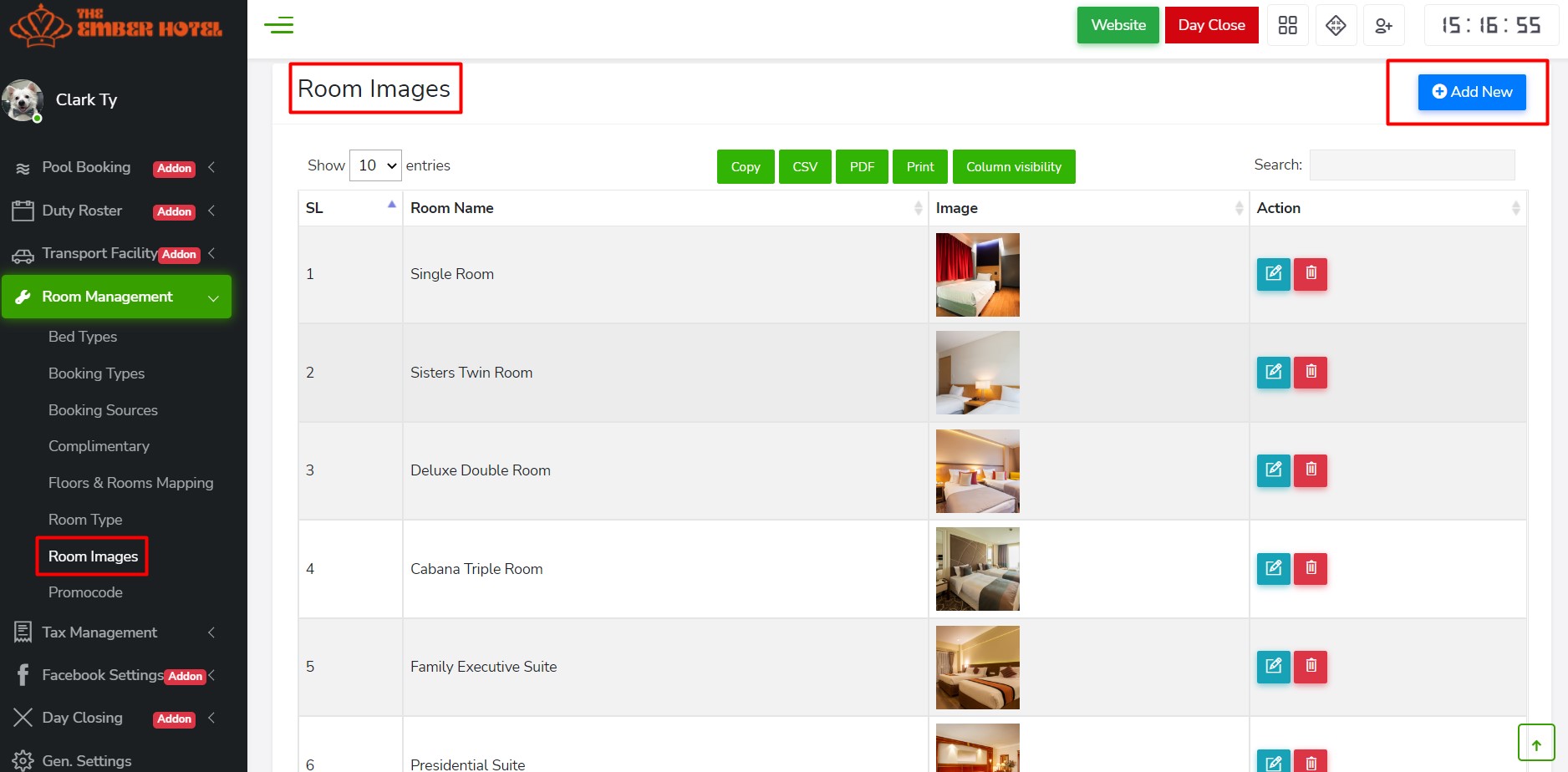
Next step is go to Room Images and add image for that specific room.
📝 Note: To avoid a poor user experience, make sure you utilize the recommended default width and height sizes when uploading an image. Visitors will have a more engaging experience when browsing your hotel's website if you upload photographs with acceptable dimensions and quality. 💯
And that's it, let us know if you need extra support! 🐾