Get started - How to create Website (Quick Guide) 8 0
in ePMS Guides

📝 Note: This is a fundamental part of your setup but feel free to edit this later, make sure you've finished creating your rooms with uploaded room photos, hotel/room facilities, and room bed types here. If you need more information, there are individual knowledge posts for each module/page that you may search for. 🔎📙
Now, let's proceed! 😉
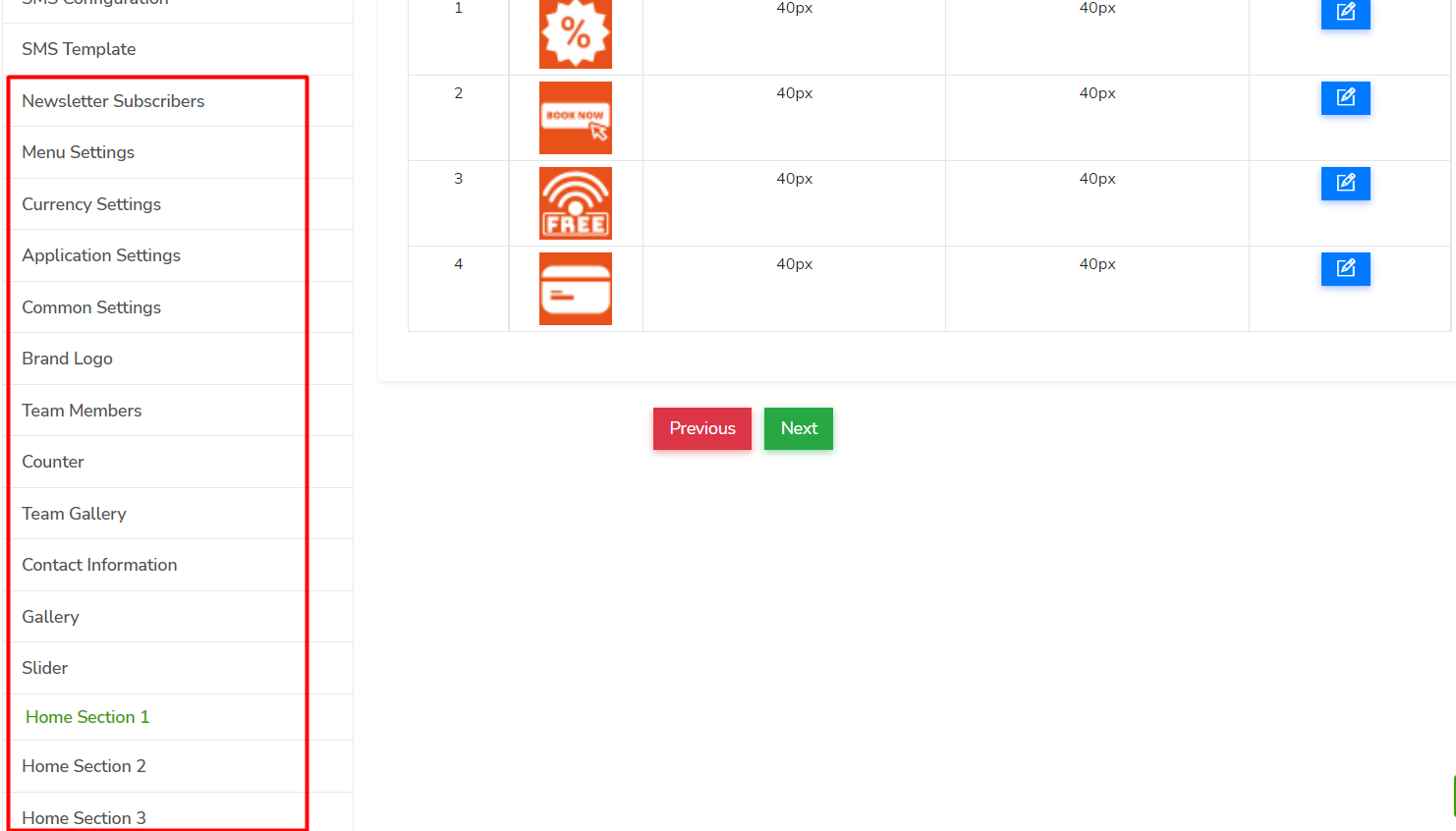
Start by going to (General Settings) and on the left side of the screen, you may start creating your own hotel website. 🛎️
- Menu - The website has five default pages (Home, About Us, Contact Us, Gallery, and My Account), of which you can only modify the name or the status.
- Currency - Simply input your preferred currency and the (*) required information.
- Application & Common Settings - Add your application name, hotel's basic information, favicon, logo, vat/service charges and check-in/out time.
- Brand Logo - Feature your hotel's top partnered brands or company
- Team Members/Gallery - Feature your hotel's top or team members
- Counter - Number of visitors count, bookings and reservations that you want to appear on your website (editable)
- Contact Information - Add your hotel's contact information
- Gallery - Upload photos to feature your top rooms
- Slider - Upload slider banners to your website
- Home Section - Add blogs to your website, features, deals, top offers and more on what the hotel has to offer
- Room Feature - Add one (1) room feature that you want to appear on your website
- Check-out - Text that will appear on your website, check-out details and booking conditions
- Footer - Text that will appear on your home page's footer > social links, terms & condition and privacy policy
Let us know if you need extra support! 🐾